Make.com and Deepgram
Make is a visual platform for automating tasks, workflows, and apps without the need for coding.
Introduction to Make
Section titled “Introduction to Make”Make workflows are called scenarios. Scenarios are automated tasks that start with a trigger (an event which sets off the workflow), and then continue on with actions, the other steps of the workflow.
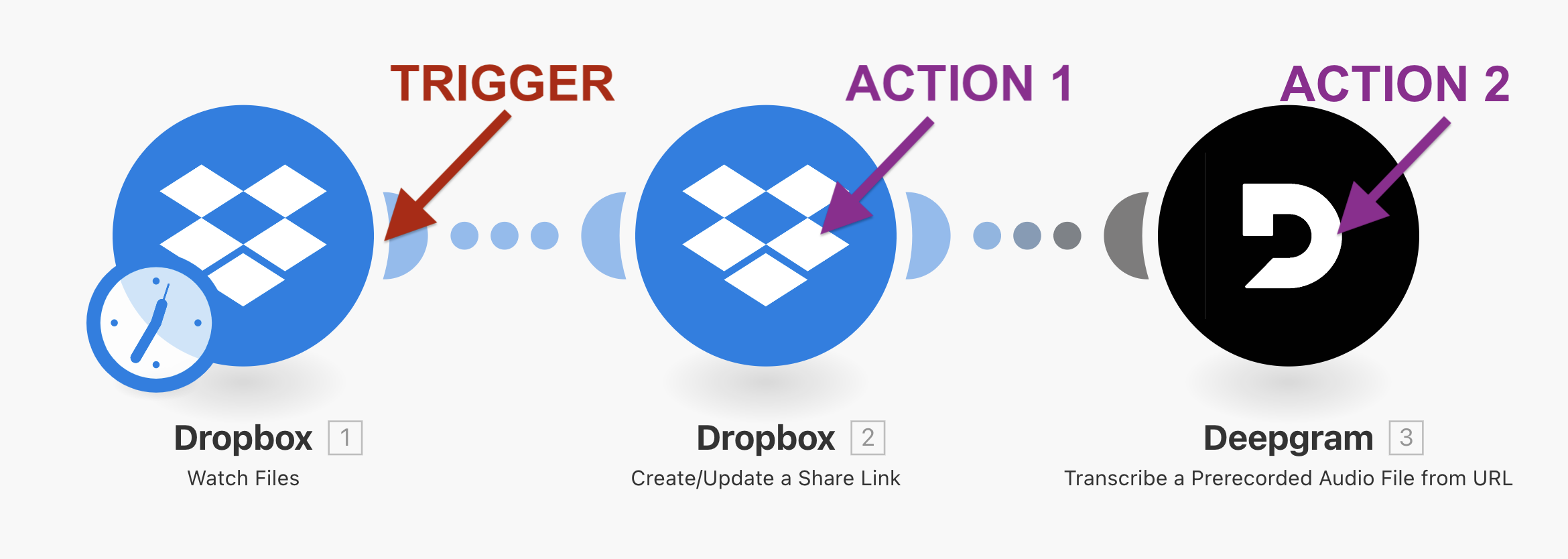
An example workflow could be the following:
Add an audio file to a folder in Dropbox (Trigger) -> Create a shareable URL Link of the file in Dropbox (Action) -> Transcribe the file with Deepgram (Action) -> Add a text file with the transcription to another folder in Dropbox (Action).
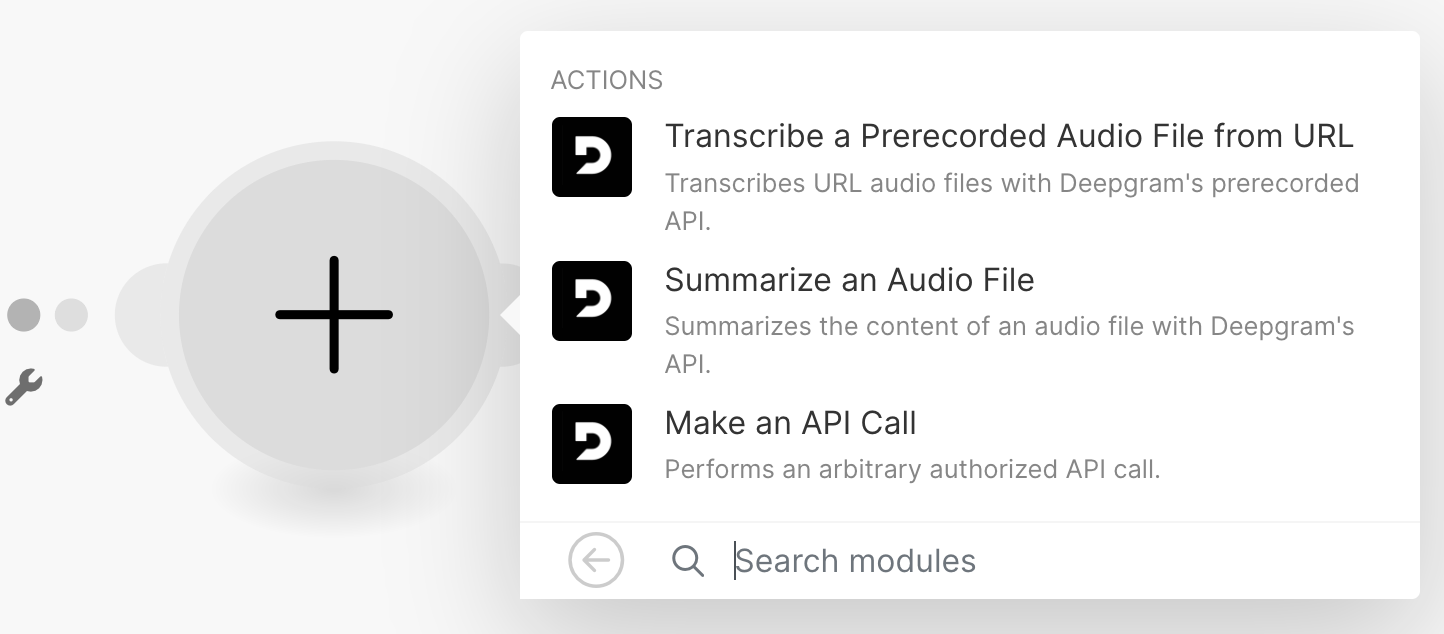
Currently, Deepgram offers these actions in Make:
- Transcribe a Prerecorded Audio File From URL
- Summarize an Audio File
- Make an API Call
How to Build a Workflow in Make
Section titled “How to Build a Workflow in Make”Create a Scenario
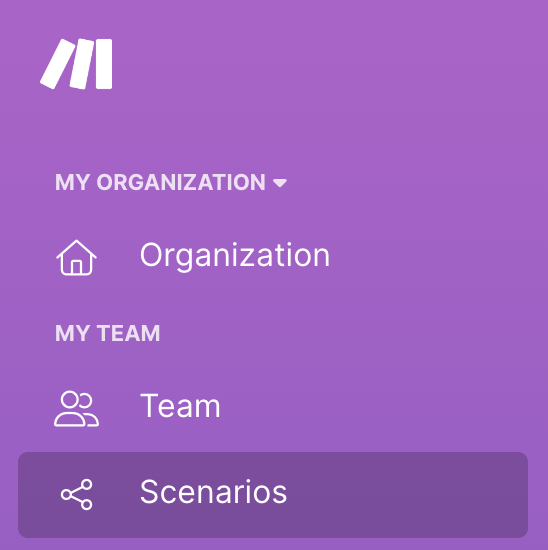
Section titled “Create a Scenario”To create a scenario, click on the “Scenarios” section in the left-side navigation bar and then click on “Create a Scenario”. You will be presented with an empty scenario.
Add a Trigger
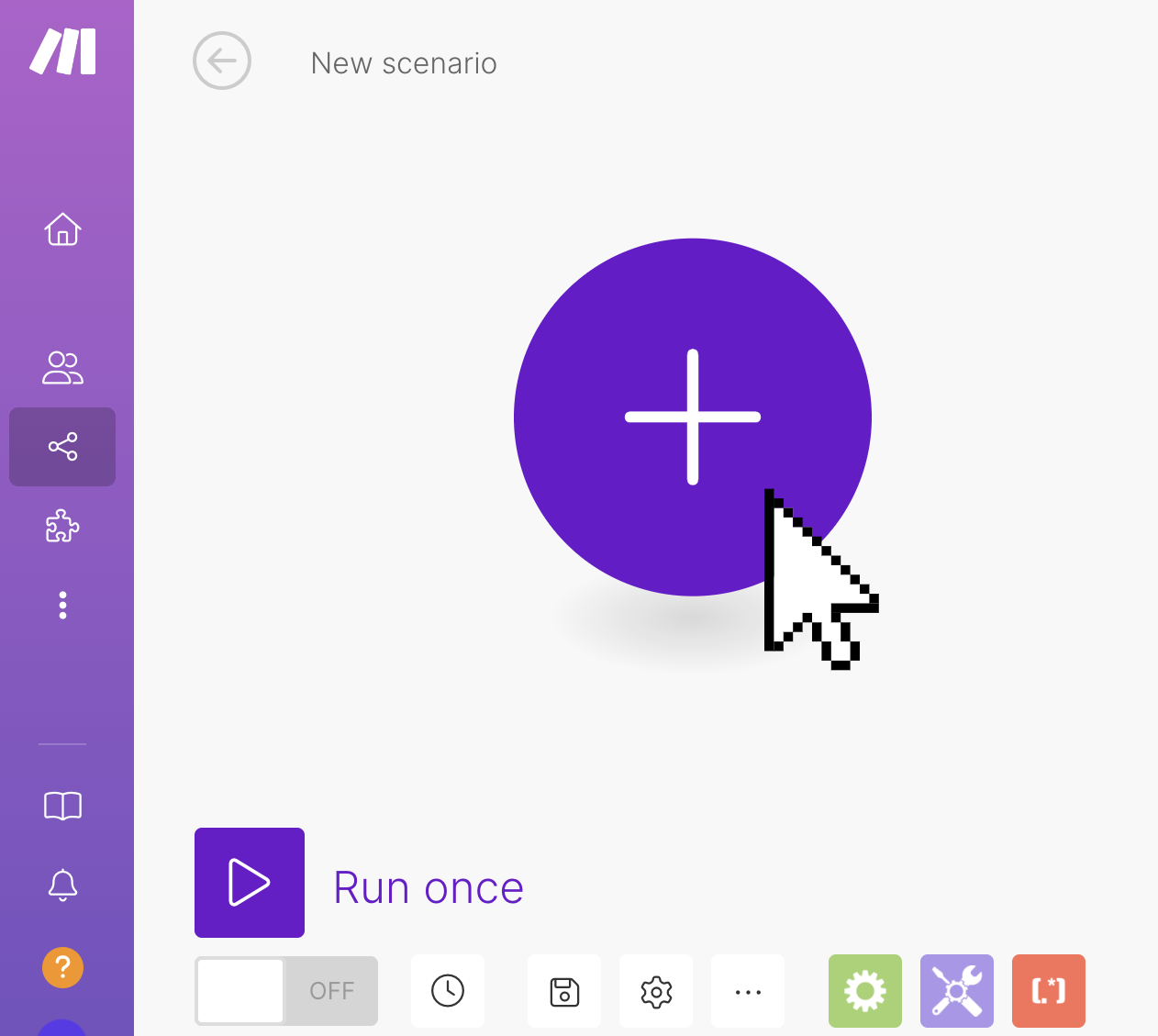
Section titled “Add a Trigger”Click on the plus sign to add a trigger. A scenario must start with a trigger. The trigger starts off the workflow with an initial trigger event.
Possible triggers with Deepgram actions could be:
| Trigger | Action |
|---|---|
| A voicemail message is sent with Telegram or WhatsApp | Deepgram transcribes the audio message into text |
| A new video is added to Vimeo | Deepgram summarizes the content of the video |
| A meeting takes place in Zoom | Deepgram transcribes the meeting into a text transcript or summarizes the content |
Select your trigger. You will need to connect the integration you’ve chosen. Integrations may use OAuth to authenticate automatically, or you may have to enter an API key.
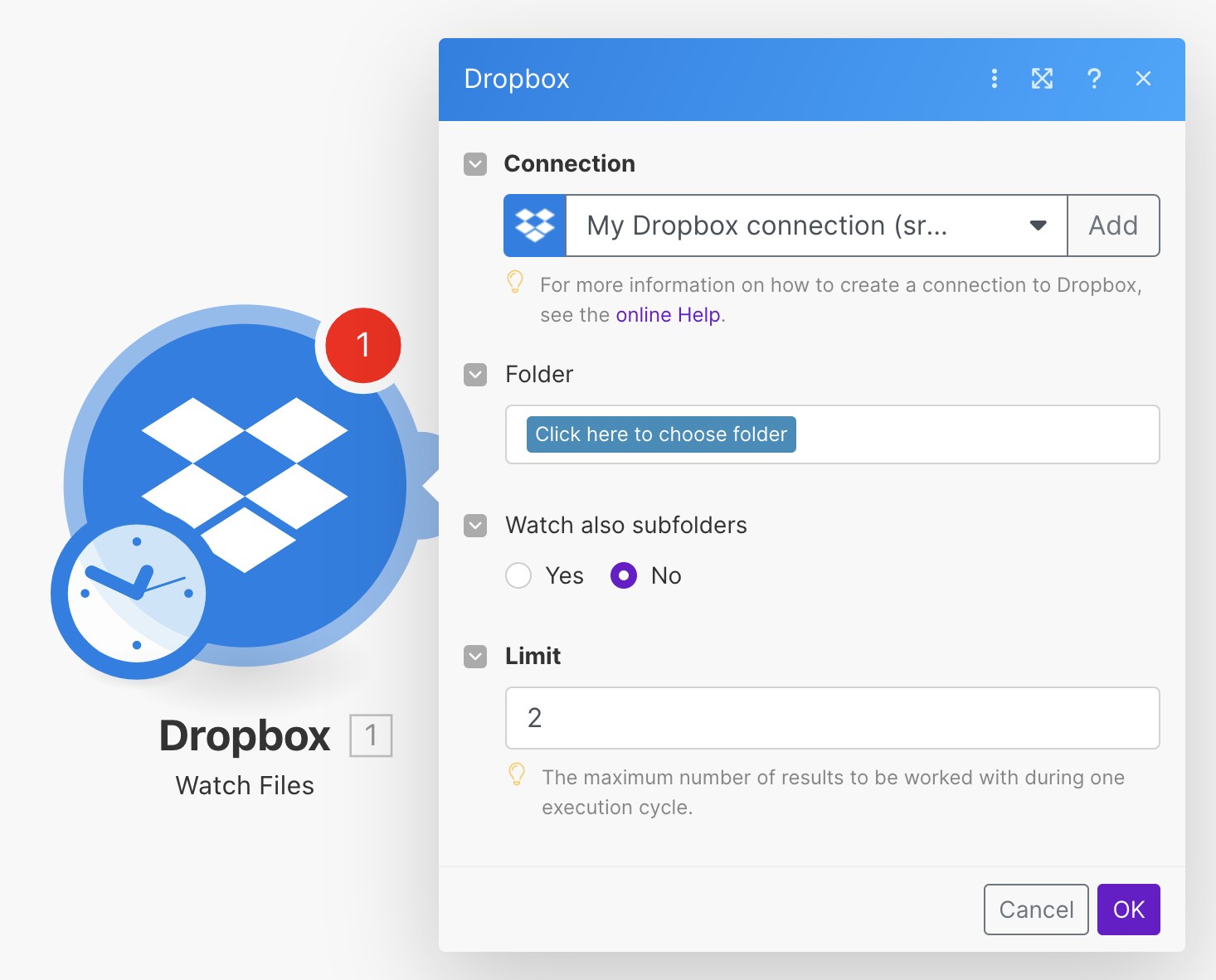
Once your trigger has been set up, you can add actions.
Add a Deepgram Action
Section titled “Add a Deepgram Action”To add a Deepgram action, click on the “Add another module” button. Type Deepgram and then select the appropriate action. This will bring up all the possible Deepgram actions
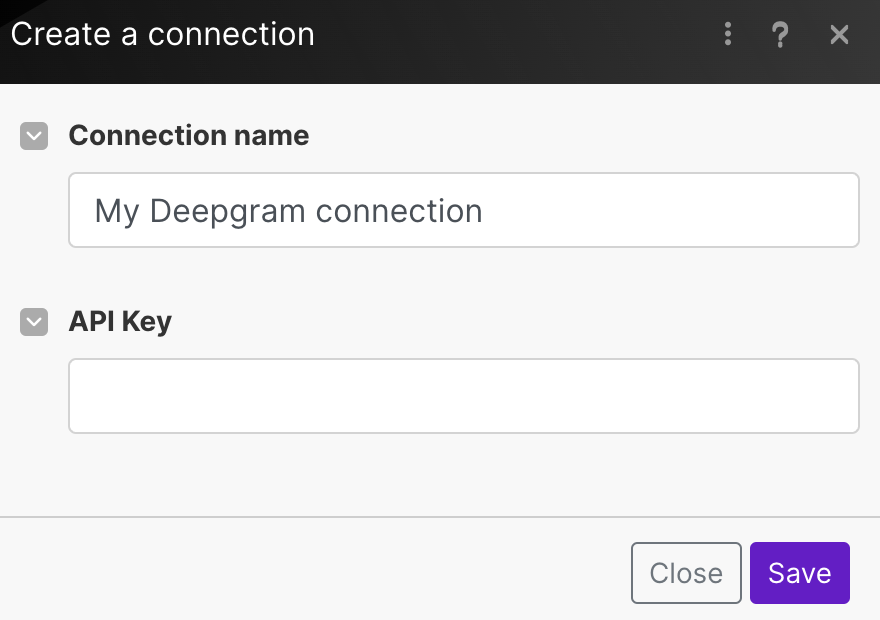
Next you will be prompted to connect to Deepgram. Enter your API key to connect your account.
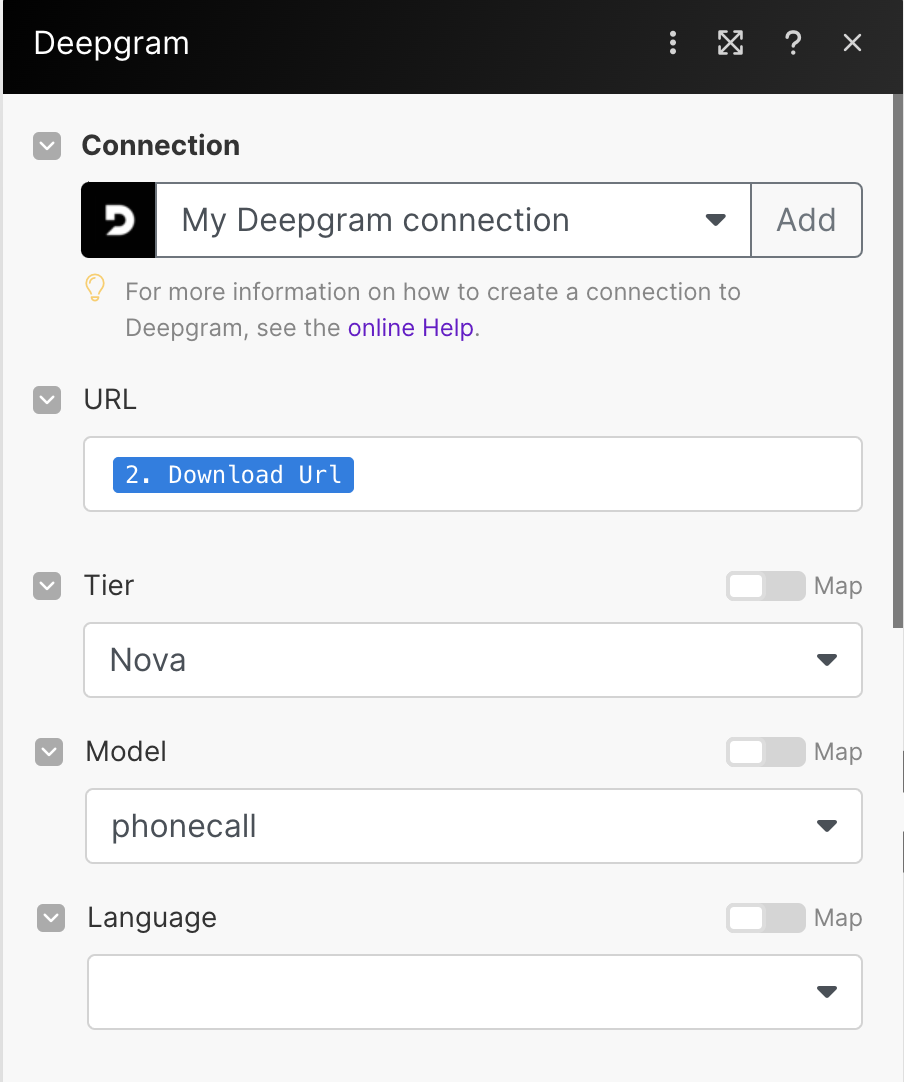
After successfully connecting your account, you will select your configuration options in the form. The only required input is the URL; you can leave the rest blank if you do not have a specific configuration in mind. Read more about each of the form options in our API Reference.
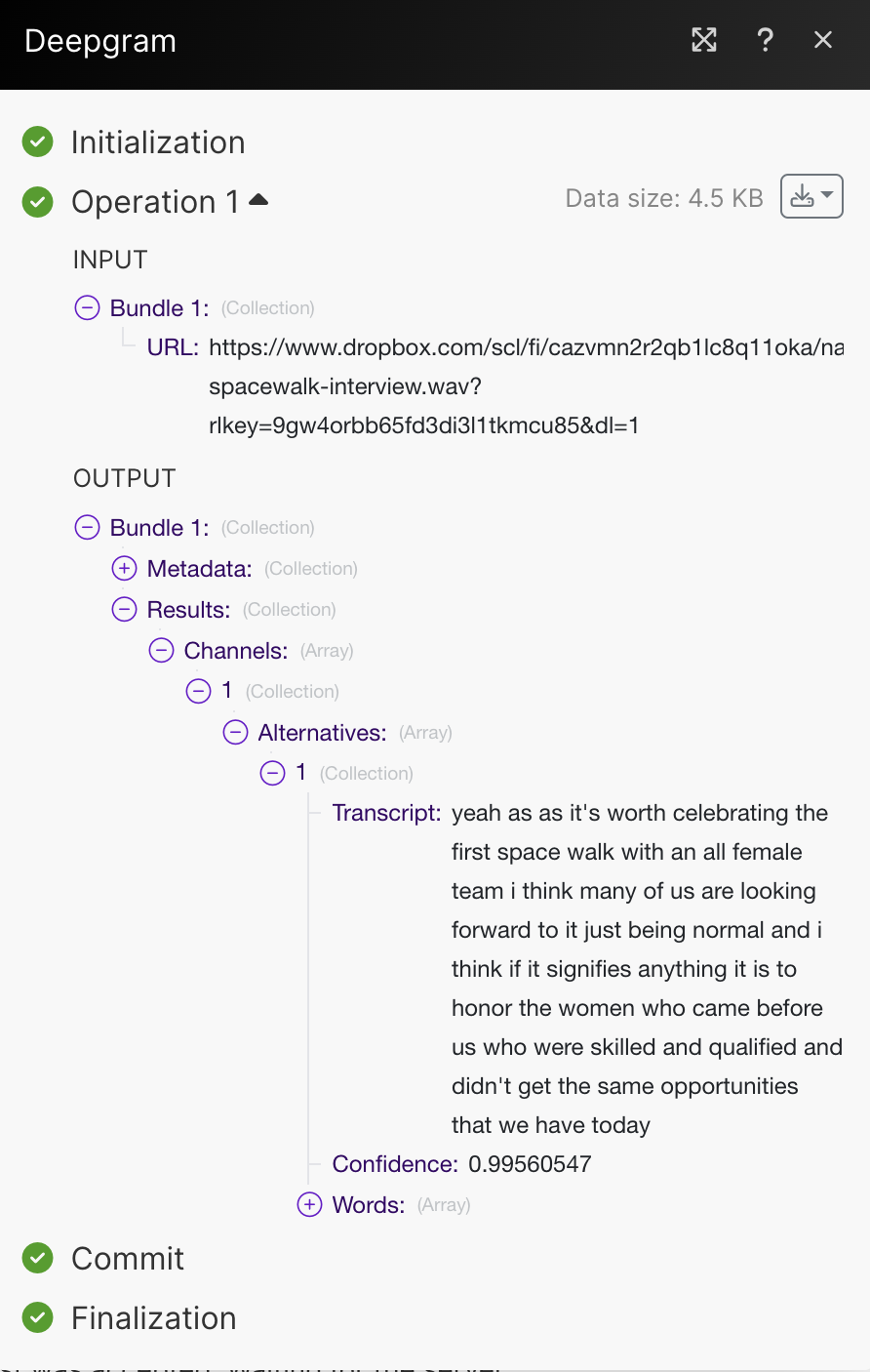
You can test the workflow by clicking “Run Once”. This will run the workflow one time so you can then check the outputs of each step. Click on the bubble above the Deepgram integration to see the output of the action. By clicking into the form outputs, you can find the transcription within the “Results” section.
If you add another action after your Deepgram action, you can use the transcript in that following action.
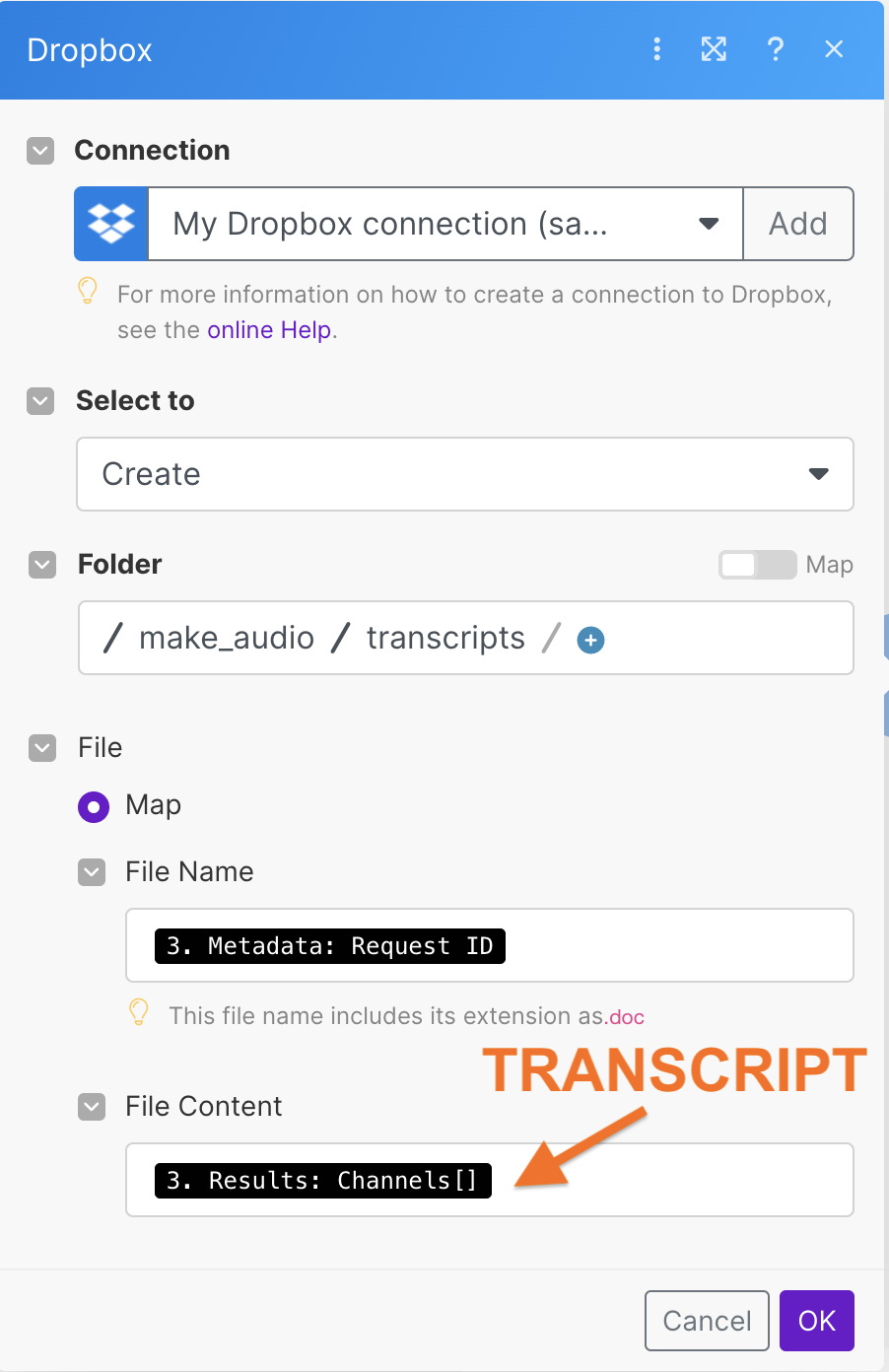
Choose Results: Channels[] to use the transcript output in this following action.
What’s Next