Zapier and Deepgram
Zapier is an online automation tool that allows you to connect your favorite apps, such as Amazon S3, Zoom, Deepgram, and more. It enables you to automate tasks between them, without having to write any code.
Introduction to Zapier
Section titled “Introduction to Zapier”Zapier workflows are called “Zaps.” A Zap is a connection between two apps made up of a trigger and one or more actions.
Here’s how it works:
- Trigger: An event in one app that starts the Zap. For example, receiving a new voicemail, recording a new meeting in a video conference software program, or uploading a video of a lecture.
- Action: An event that completes the Zap. It’s the result or output you want to achieve, such as transcribing a new voicemail to text, converting a recorded meeting to written notes, or generating a summary text document from a spoken lecture.
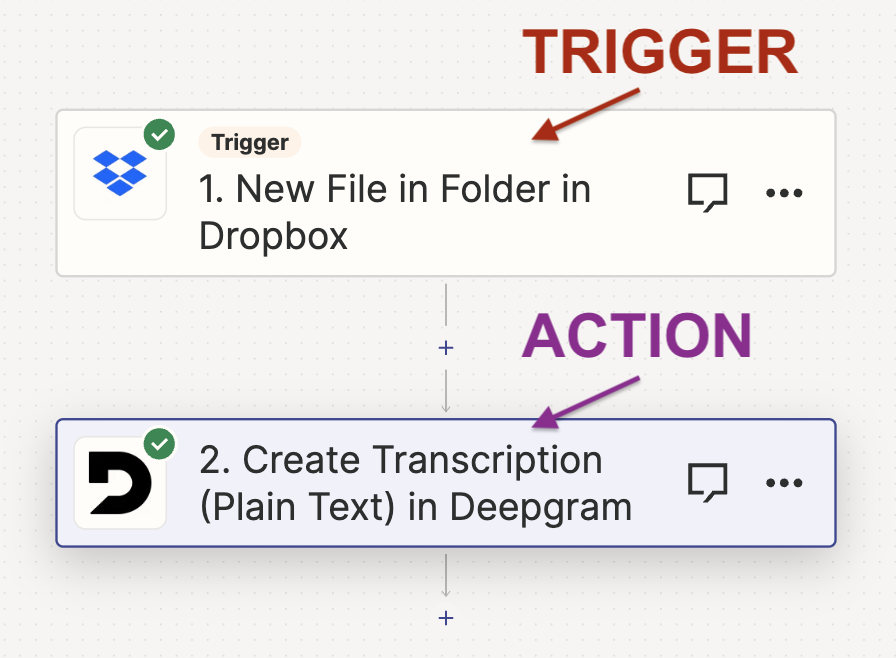
An example Zap could be the following:
Add an audio file to a folder in Dropbox (Trigger) -> Transcribe the file with Deepgram (Action) -> Add a text file with the transcription to another folder in Dropbox (Action).
Currently, Deepgram offers these actions in Zapier:
- Create Transcription (Plain Text)
- Create Summary
- Create Deepgram API Request (Speech-To-Text)
- Create Transcription (Callback)
How to Build a Workflow in Zapier
Section titled “How to Build a Workflow in Zapier”Create a Zap
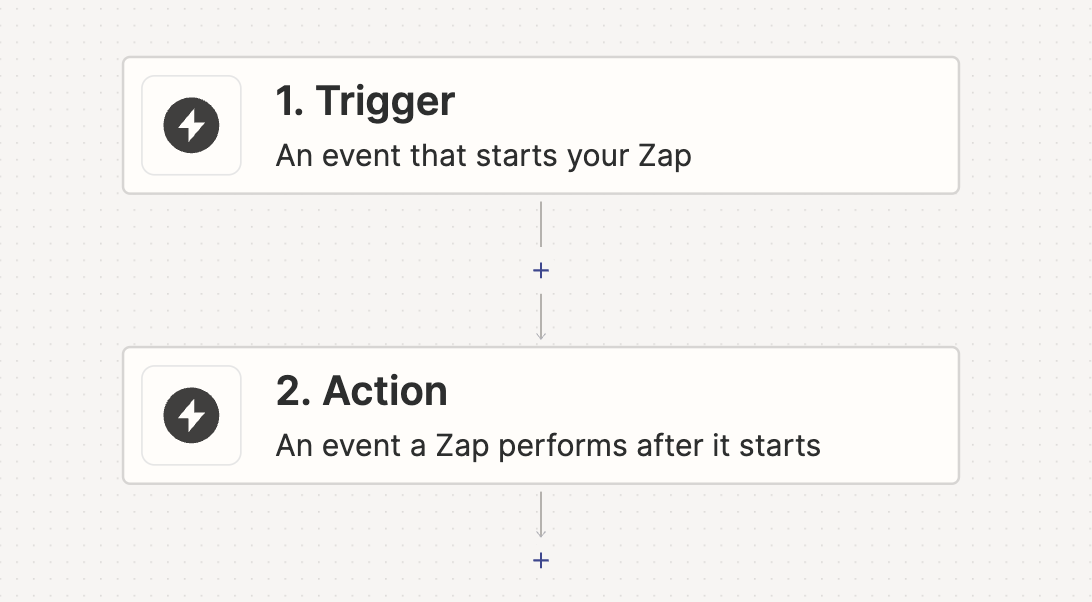
Section titled “Create a Zap”To create a Zap, click on the “Create Zap” button in the left-side navigation bar. This will create a starter zap with a trigger and an action.
Set up the Trigger
Section titled “Set up the Trigger”Click into the first box to change the trigger. A Zap must start with a trigger. The trigger starts off the workflow with an initial trigger event.
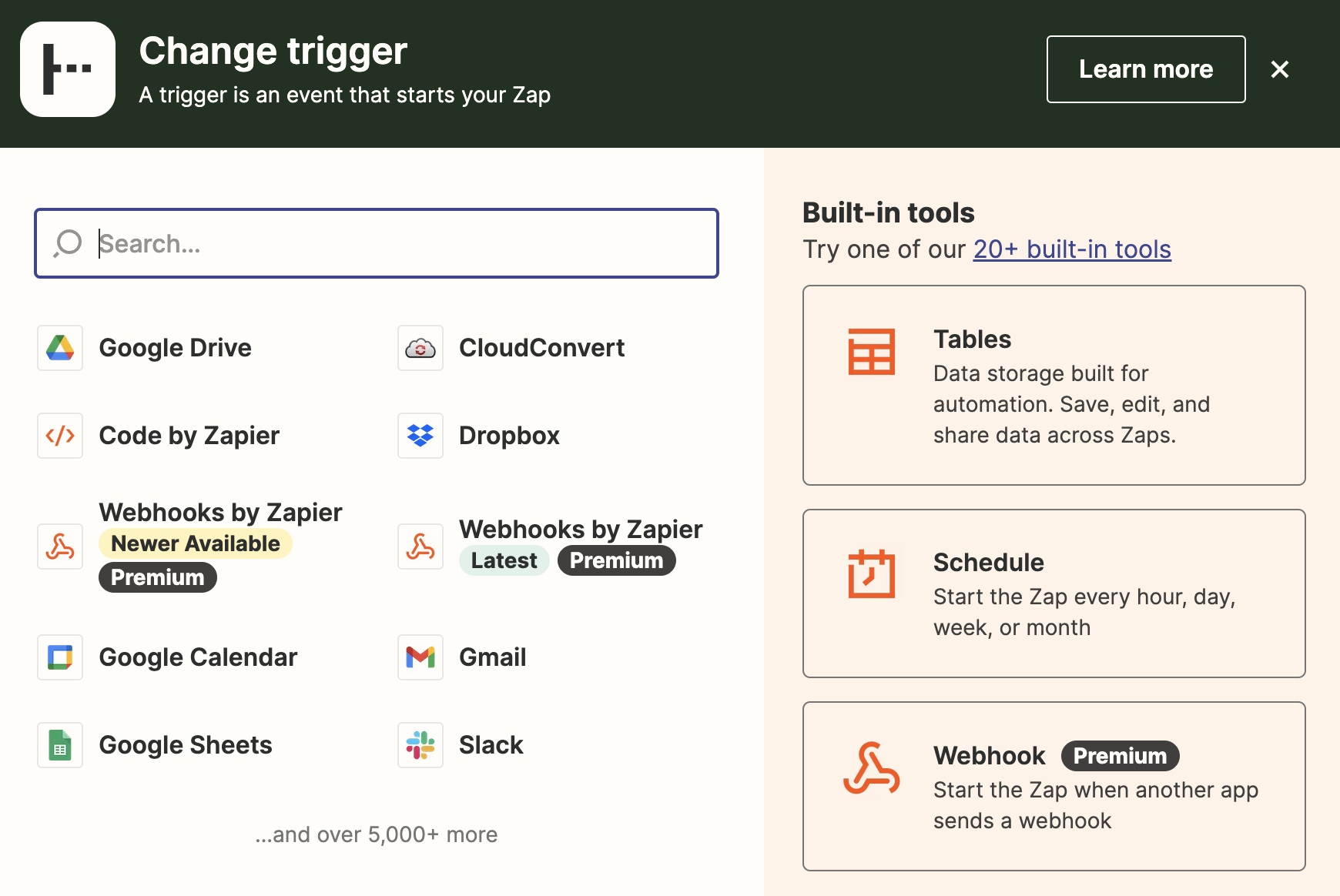
Example triggers with Deepgram actions could be:
| Trigger | Action |
|---|---|
| New Recording is Completed in Zoom | Deepgram transcribes the recording into a text transcript |
| New Recording in Twilio | Deepgram summarizes the content of the message |
| New Audio File in Dropbox | Deepgram makes an API request and returns a JSON response including the transcription, diarization, or any other features available in the API |
Configure the trigger with your chosen integration (Amazon S3, Dropbox, etc.). Integrations may use OAuth to authenticate automatically, or you may have to enter an API key.
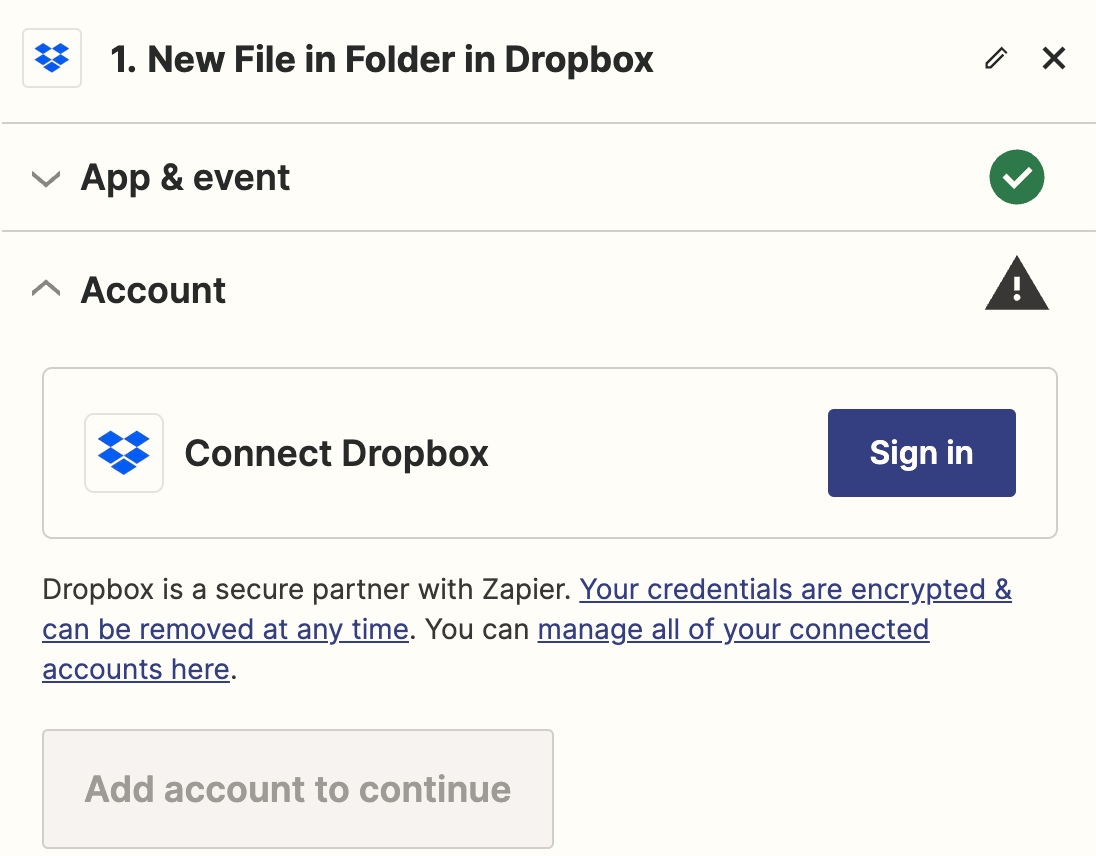
Once your trigger has been set up, you can add actions.
Configure a Deepgram Action
Section titled “Configure a Deepgram Action”Click into the action box to configure it to use Deepgram.
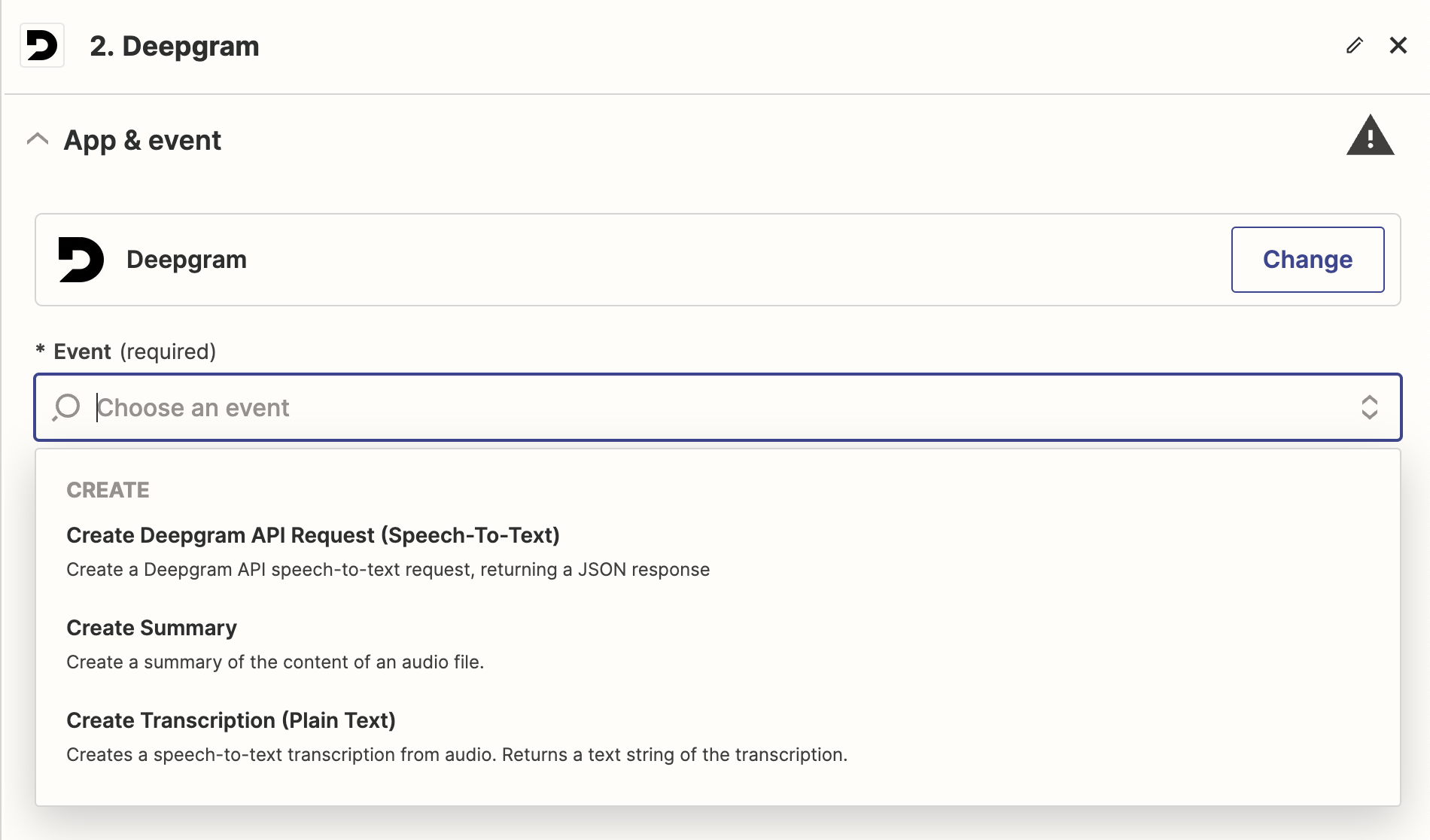
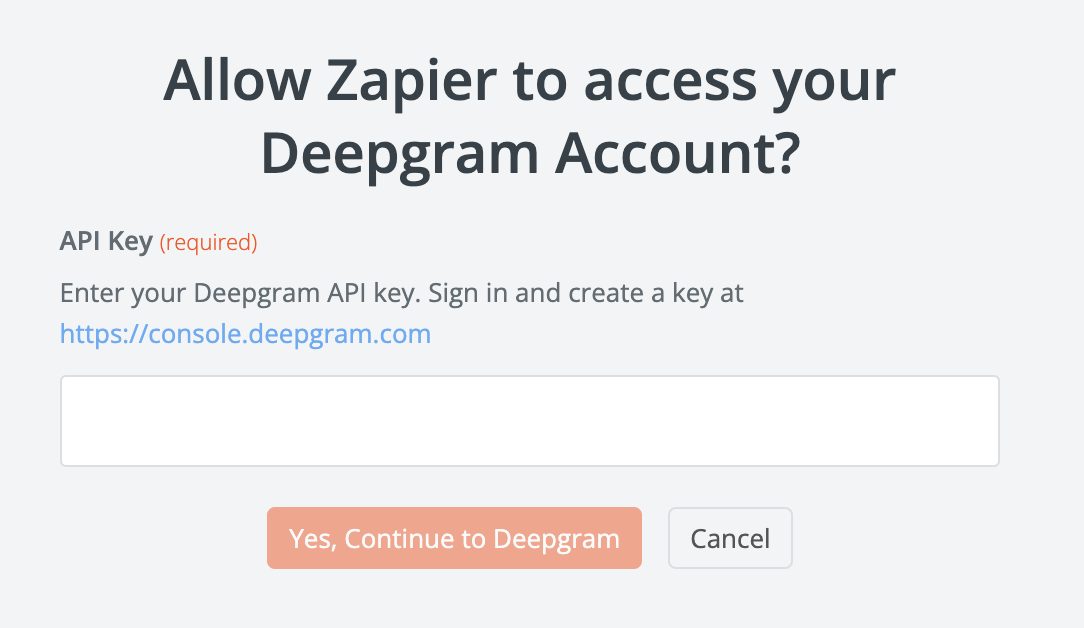
Connect to your Deepgram account by adding your API key.
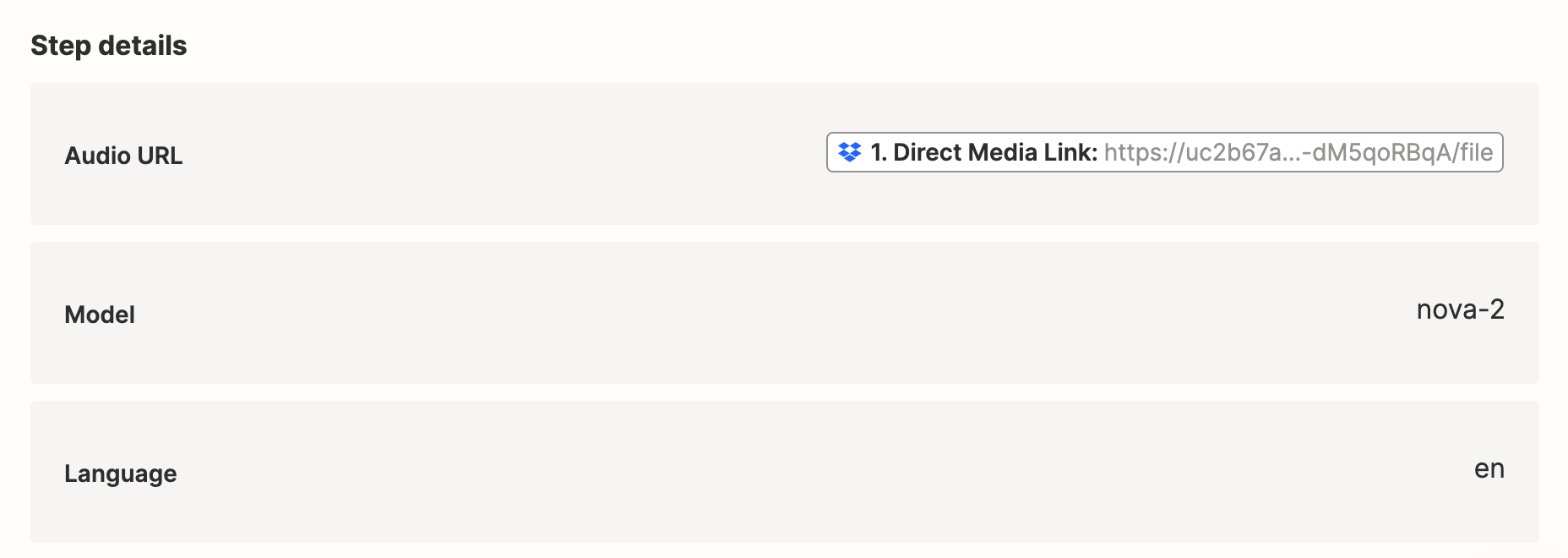
After successfully connecting your account, you will select your configuration options in the form. Be sure to add a publicly accessible URL as the audio file to transcribe.
You can test the workflow by clicking “Test Step”. This will run the workflow, and then you should see a transcription response that looks similar to this:
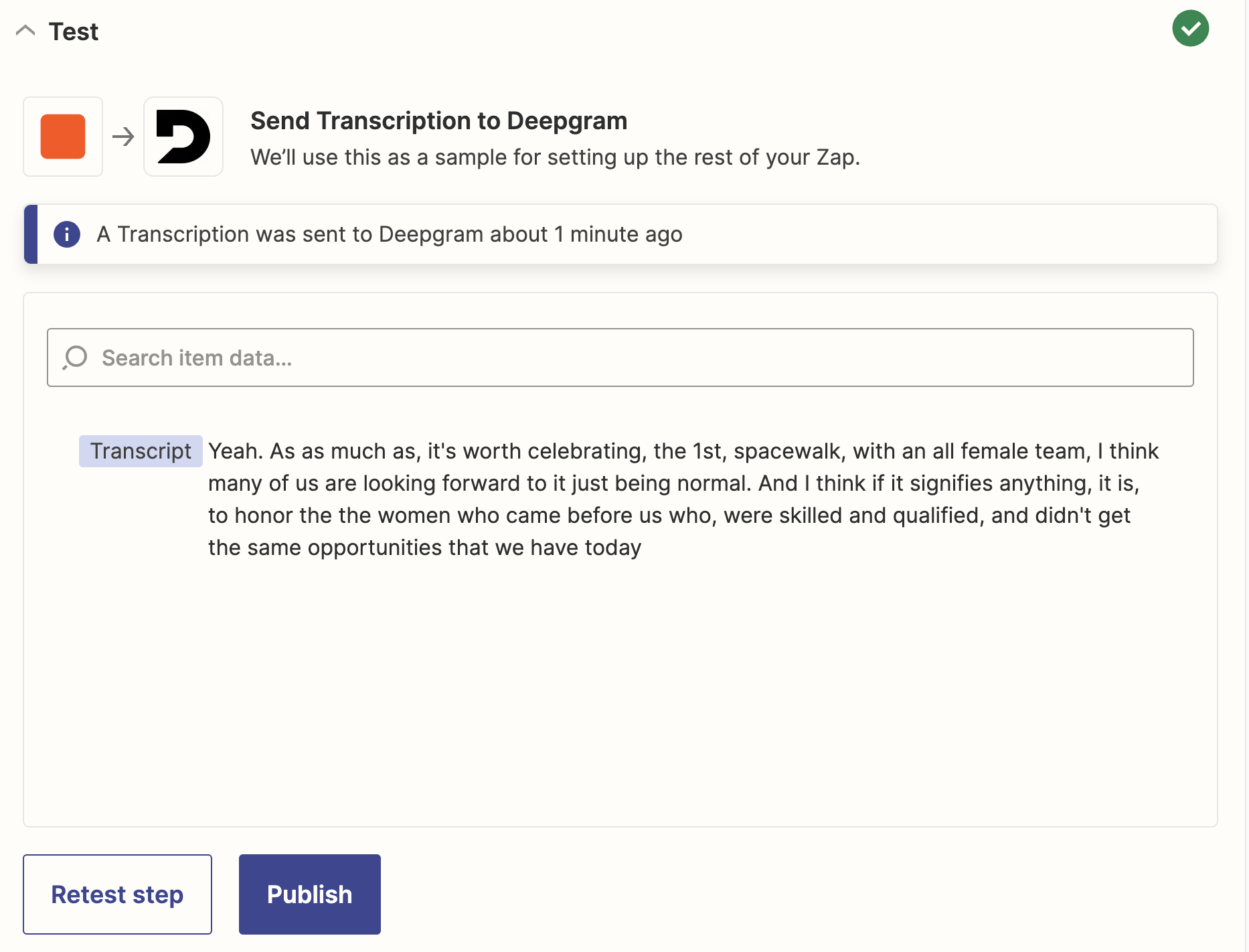
If you add another action after your Deepgram action, you can use the transcript in that following action.
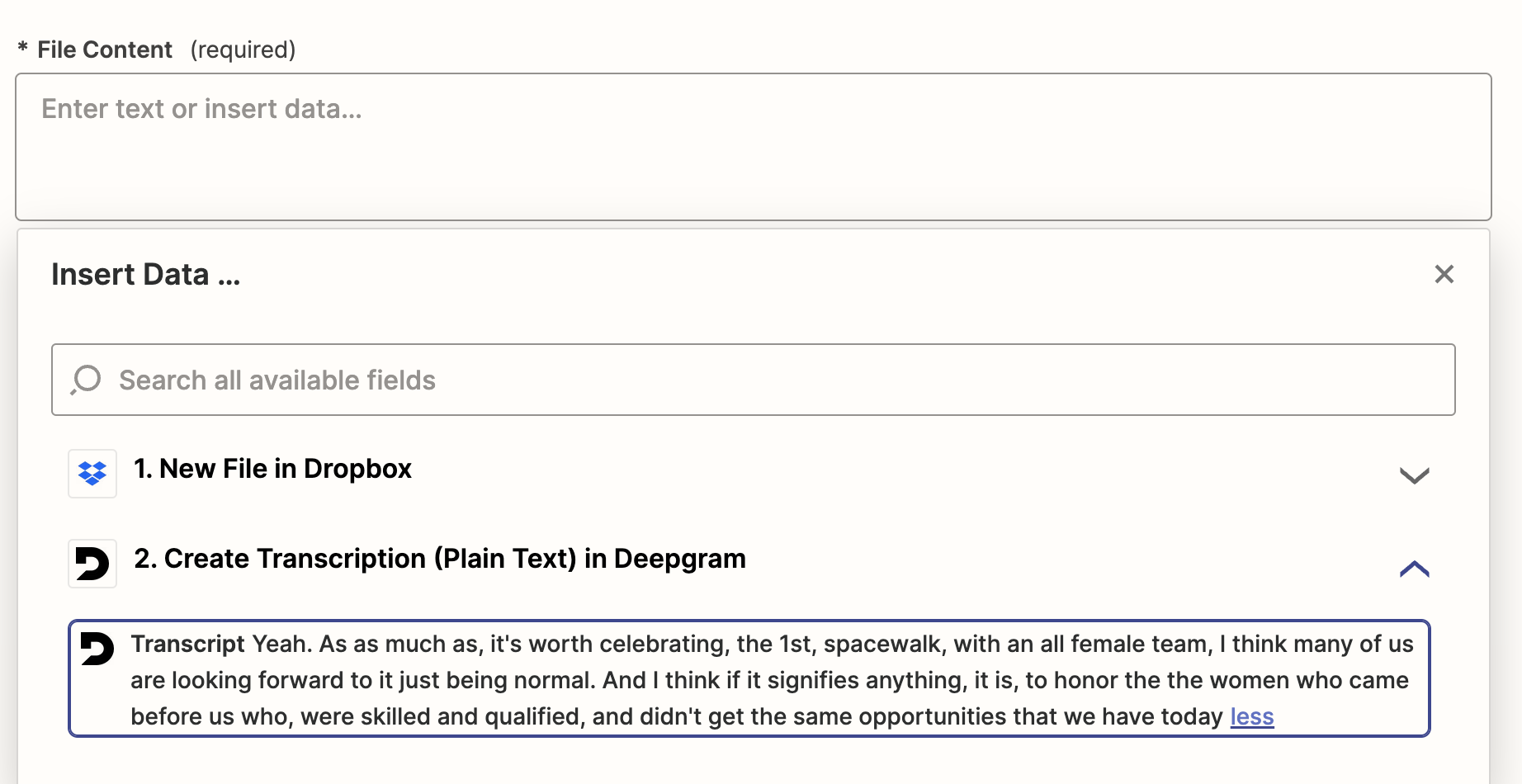
Click “Publish” in the final step to publish your zap.
What’s Next