Generating and Saving Transcripts From the Terminal
Before You Start
Section titled “Before You Start”Before you run the code, you’ll need to do a few things.
Create a Deepgram Account
Section titled “Create a Deepgram Account”Create a Deepgram API Key
Section titled “Create a Deepgram API Key”Install JQ
Section titled “Install JQ”In this guide, we use jq, which is an excellent command-line utility that allows you to display and manipulate JSON data, so you will also need to install jq.
Making a curl Request
Section titled “Making a curl Request”Open your terminal, and run the following curl command:
Let’s look more closely at this request:
--request POST: An HTTP request with the POST method.--header 'Authorization: Token YOUR_DEEPGRAM_API_KEY': Includes authorization details and links the request with your Deepgram account and Project.--header 'Content-Type: application/json': JSON data that will be sent with this request.--data '{"url":"<https://static.deepgram.com/examples/nasa-spacewalk-interview.wav>"}': JSON data sent to Deepgram (an object containing one URL parameter).--url 'https://api.deepgram.com/v1/listen?punctuate=true': URL to which the request should be made (Deepgram’s endpoint).punctuate=trueenables the punctuation feature.\: Allows you to break one command over several lines for readability.
When you run this command and it is finished processing (often after only a few seconds), you’ll receive a JSON response that looks similar to the following:
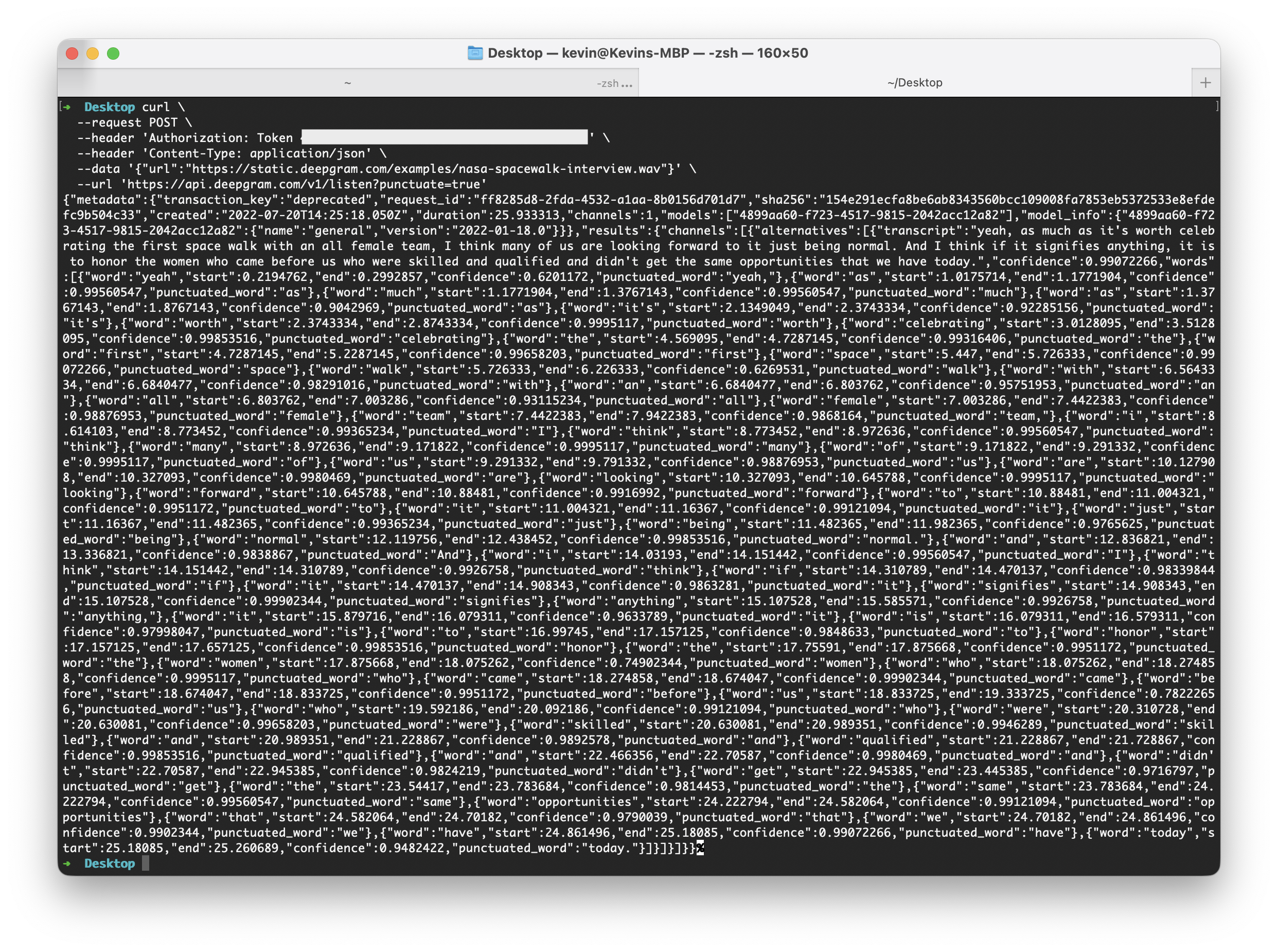
This may look daunting, so let’s look at a way to make both our curl request and our response easier to read.
Shortening Your curl Request
Section titled “Shortening Your curl Request”Now that you’ve seen a full curl request and understand the required parameters, let’s look at a more concise way to make the same request:
In this example, notice:
- The URL comes immediately after the
curlcommand. - No HTTP method is present. Normally, this would default to a GET request, but because this request has a body, curl assumes a POST request.
--headeris shortened to-H--datais shortened to-d.
Formatting Your JSON Response
Section titled “Formatting Your JSON Response”To make the JSON response more readable, you can use jq, which is an excellent command-line utility that allows you to display and manipulate JSON data.
In the terminal, a pipe (|) is often used to send the output of one command as an input for a second command. jq expects some JSON as input, plus an expression to describe how to display it.
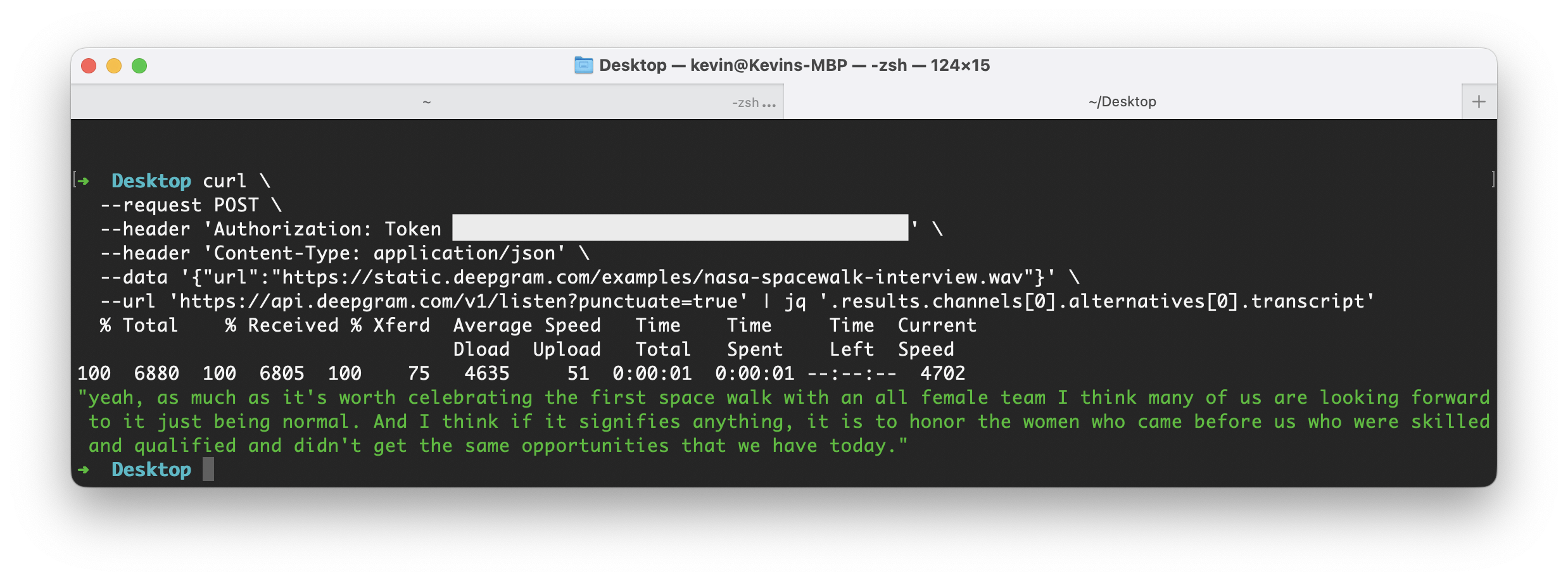
The following jq expression will extract just the transcript from the returned data object:
| jq '.results.channels[0].alternatives[0].transcript'
To use it, add it to the end of your curl request:
When you run this command and it is finished processing (often after only a few seconds), you’ll receive a JSON response that looks similar to the following:
Saving Output to a File
Section titled “Saving Output to a File”Once you have the transcript extracted and formatted using jq, you can redirect the output to a new file by appending > output.txt to any command that prints to the terminal. For example:
Processing Multiple Files
Section titled “Processing Multiple Files”To process multiple files, you can create .sh files containing multiple lines of bash script to execute from your terminal.
Create a new file called transcripts.sh, and open it in a code editor. Populate it with the following:
In this file, notice:
-
The first line (
#!/bin/bash) is a shebang and specifies which program should be called to run the script. In this case,bash. -
urlsis a variable containing an array with three URLs. The arrays use parentheses, and items are separated by only one space. -
dg_featuresanddg_keyare variables you should alter for your exact use case. Note that the request, as written, uses Deepgram’s punctuation, utterances, diarize, and tier features included in thedg_featuresvariable. -
Inside the
forloop:filenameextracts the last part of the URL (the filename), which will later be used to name the output file.- The
curlcommand is the same as before, but with variables interpolated. The output is stored in a new variable calledRESPONSE. RESPONSEis sent tojq, and then redirected into a new text file.
Run the file in your terminal:
Experimenting with jq
Section titled “Experimenting with jq”jq is a remarkable powerful tool that you can use to format data in more advanced ways. For example, the following expression will loop through the results.utterances array and format a string for each item, interpolating the speaker identifier and transcript text:
When you run a previous curl command with this jq appended and it is finished processing, you’ll receive a JSON response formatted in the following way:
[Speaker:0] agreement on other things that are really good. Nancy, would you like to say something?
[Speaker:1] Well, thank you, mister president for the opportunity to meet with you so that we can work together in a bipartisan way
[Speaker:1] to meet the needs of the American people. I think the American people recognize
[Speaker:1] that we must keep government open, that a shutdown is not worth anything.
[Speaker:1] And that you should