Configure Amazon SageMaker Deployments
Deepgram on Amazon SageMaker supports runtime configuration through environment variables. When your SageMaker Endpoint starts, the container reads these variables and applies them to the appropriate configuration files (api.toml and engine.toml) before launching Deepgram services.
Use environment variables to tune settings for a specific SageMaker deployment, such as specifying the maximum number of streams for Flux or adjusting the step parameter for interim results (Nova-3).
Environment variable format
Section titled “Environment variable format”Each environment variable targets either the API server (api.toml) or the speech engine (engine.toml) based on its prefix.
| Prefix | Targets |
|---|---|
DEEPGRAM_API_ |
api.toml (API server) |
DEEPGRAM_ENGINE_ |
engine.toml (inference engine) |
The suffix after the prefix (for example, 01, 02) is arbitrary and distinguishes multiple variables targeting the same file. Variables are applied in alphabetical order by name.
Value syntax
Section titled “Value syntax”DEEPGRAM_ENGINE_<suffix>="<dotted.key.path>=<value>"
DEEPGRAM_API_<suffix>="<dotted.key.path>=<value>"- Dotted key path: Maps to TOML section hierarchy. For example,
chunking.streaming.stepsets thestepkey inside[chunking.streaming]. - Value types: Integers, floats, booleans (
true/false), and quoted strings. - Multiple settings: Use separate environment variables with different suffixes.
Configuration examples
Section titled “Configuration examples”Specify maximum engine requests
Section titled “Specify maximum engine requests”DEEPGRAM_ENGINE_01=max_active_requests=120Disable entity detection (speech-to-text)
Section titled “Disable entity detection (speech-to-text)”DEEPGRAM_API_01=features.entity_detection=falseSpecify maximum Flux streams
Section titled “Specify maximum Flux streams”This is separate from max_active_requests and is specific to the Flux streaming transcription model.
DEEPGRAM_ENGINE_01=flux.max_streams=25Tune streaming chunk size
Section titled “Tune streaming chunk size”DEEPGRAM_ENGINE_01=chunking.streaming.step=0.5Require GPU on startup
Section titled “Require GPU on startup”DEEPGRAM_ENGINE_01=health.gpu_required=trueApply multiple settings
Section titled “Apply multiple settings”Use incrementing suffixes to apply multiple settings to the same file:
DEEPGRAM_ENGINE_01=chunking.streaming.step=0.5
DEEPGRAM_ENGINE_02=health.gpu_required=true
DEEPGRAM_API_01=features.listen_v2=true
DEEPGRAM_API_02=features.topic_detection=false
Set environment variables in SageMaker
Section titled “Set environment variables in SageMaker”Environment variables are set at the Model level in SageMaker and passed to the container at runtime.
AWS Management Console
Section titled “AWS Management Console”Navigate to the Amazon SageMaker AI console
Go to AWS Marketplace Resources > Marketplace Model Packages
Select the AWS Marketplace Subscriptions tab
Select the radio button for the product you want to import the model for
Select Actions > Create Model
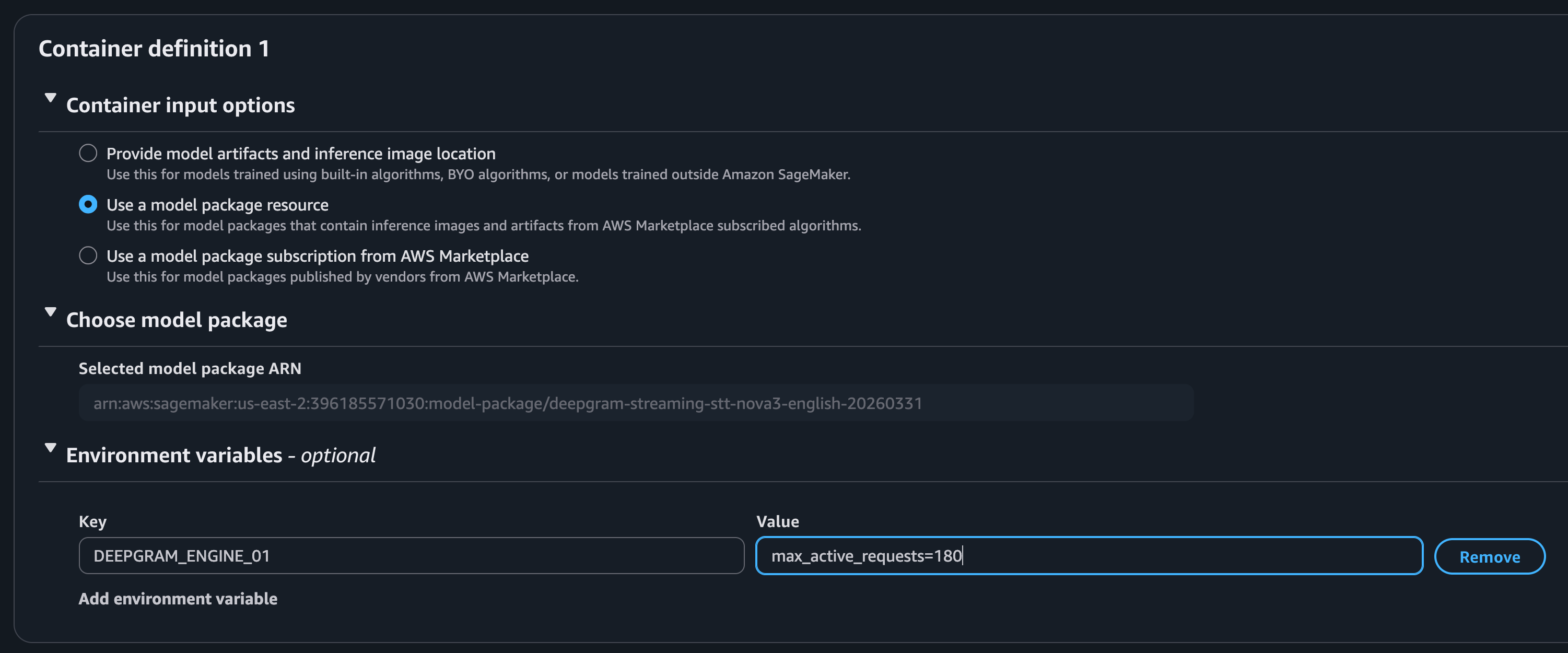
Under Container Definition, expand Environment variables
Add each
DEEPGRAM_API_*orDEEPGRAM_ENGINE_*variable with its TOML expression as the value
AWS CLI
Section titled “AWS CLI”Create the SageMaker Model resource from a Model Package Amazon Resource Name (ARN). See Find the Model Package ARN for how to obtain it.
If you create the model directly from an ECR image, use --primary-container with Image=... instead.
AWS SDK for Python (Boto3)
Section titled “AWS SDK for Python (Boto3)”import boto3
sagemaker = boto3.client("sagemaker")
sagemaker.create_model(
ModelName="my-deepgram-model",
ExecutionRoleArn="arn:aws:iam::123456789012:role/SageMakerRole",
Containers=[
{
"ModelPackageName": "arn:aws:sagemaker:us-east-1:123456789012:model-package/my-model-package/1",
"Environment": {
"DEEPGRAM_ENGINE_01": "flux.max_streams=25",
"DEEPGRAM_API_01": "features.listen_v2=true",
},
}
],
)Verify configuration
Section titled “Verify configuration”After your Endpoint reaches InService status, check Amazon CloudWatch Logs for the Endpoint to confirm variables were applied. Look for log lines similar to:
INFO Starting Deepgram SageMaker configuration...
INFO Applying to engine.toml: DEEPGRAM_ENGINE_01=flux.max_streams=25
INFO Successfully updated engine.toml
INFO Applying to api.toml: DEEPGRAM_API_01=features.listen_v2=true
INFO Successfully updated api.toml
INFO Configuration complete.
Troubleshooting
Section titled “Troubleshooting”Maximum environment variables supported
Section titled “Maximum environment variables supported”Deepgram supports a maximum of 8 environment variables each for the API server and engine. Suffixes range from 01 to 08.
Setting does not take effect
Section titled “Setting does not take effect”Check CloudWatch Logs for warning messages indicating a variable was skipped due to a parse error.
Parse error in CloudWatch Logs
Section titled “Parse error in CloudWatch Logs”- Quote string values within the value expression:
driver_pool.standard.url="https://engine:8080/v2" - Boolean values do not require quoting:
features.listen_v2=true
Environment variable support not enabled
Section titled “Environment variable support not enabled”AWS requires whitelisting support for environment variables on SageMaker product listings. If you receive the error:
An error occurred (ValidationException) when calling the CreateModel operation: Environment variable map cannot be specified when using a ModelPackage subscribed from AWS Marketplace.
Contact Deepgram Support for help enabling it for that product.
Support
Section titled “Support”For a complete reference of available TOML configuration keys, refer to the api.toml and engine.toml files in the Deepgram self-hosted GitHub repository, or contact Deepgram Support.